
Once you have added your content as Documents to an Engine you can use the powerful query and filtering features below to deliver the relevant content to your users quickly.
Querying#
Performing a search has at its core a query. This is usually a word or phrase that a user wants information about. Silverstripe Search takes the query and finds documents that have content matching that it. For example, your user may make a query for contact address in order to find a page on your site that contains your organisation’s physical address.
By default Silverstripe Search will match the query to the content of all the fields in your document. This can be customised - for more information see the Developer's guide or the Search API documentation.
A query can consist of multiple terms (even multi-word terms), which can be combined using special syntax (operators). By default Silverstripe Search will match any terms in your query (although the more complete the match the higher the document score of the result). Search behaviour can be changed using special syntax (operators):
| Syntax | Effect |
|---|---|
| Double quoted strings e.g. contact "street address" | Text within double quotes will be matched as one term. In this example rather than matching just street or address, the document must match street address. |
Operator AND e.g. engineering AND chemical | The AND operator matches documents where both terms exist in the document fields. |
Operator NOT e.g. engineering NOT chemical | The NOT operator excludes documents that contain the term after NOT. |
Operator + e.g. wheel +square | Requires the term right after the + to be in the matching document. |
Operator - e.g. wheel -square | Prohibits the term right after the - from being in the document. |
WARNING
Some relevance tuning settings do not support this special syntax.
Sorting#
By default Silverstripe Search will calculate a document score for how well a document matches your query. Results with the highest score will be returned first.
You can fine-tune how this score is calculated using the Relevancy tuning options:
- Weights — Prioritise certain fields so that matches in those fields contribute more to the score
- Boosts — Promote documents that match specific criteria such as a particular value, recency, or proximity to a location
- Precision — Control how strictly queries must match your content
- Synonyms — Define equivalent terms so users find content regardless of the terminology they use
- Curations — Manually pin or hide specific documents for particular queries
You can choose a different order by sorting on a different field. Different field types can be sorted in type-specific ways:
text: Can be sorted alphanumericallynumber: Can be sorted numericallydate: Can be sorted historicallygeolocation: Can be sorted by distance to a provided geographical point.
Sorting can be done against multiple fields, ascending or descending. Refer to the Search API documentation for details on sort options.
Filters#
A common requirement for search is to match a subset of your overall content. For example, you may want a search box that finds only blog posts. You can use Silverstripe Search's filters to narrow down what results are returned. This can allow you to create rich user interfaces such as product filters. Refer to the Search API documentation for filter request format details. There are several types available:
| Filter Type | Description |
|---|---|
value | Return documents that contain a specific field value. Available on text, number, and date fields. |
range | Return documents over a range of dates or numbers. Available on number or date fields. |
geo | Return documents relative to their location. Available on geolocation fields. |
Facets#
Facets help the user discover more about your data by showing them as groups of results. A common example is a menu that might show you how many results there are within a category:

You can create facets by value which shows documents that have a matching field or by range such as documents within a specific date range. Refer to the Search API documentation for facet request format details.
Results#
Result fields are customisable, and can be presented as raw values or field excerpts with search terms highlighted. Refer to the Search API documentation for result field options or the Developer's guide for further customisation in code.
Suggestions#
Silverstripe Search supports two types of suggestions: query suggestions, and spelling suggestions. These two features provide very different functionality, and cannot be used interchangeably.
In short:
- Query suggestions are used to expand the query being made
- Spelling suggestions are used to correct the query being made
Query suggestions#
Also known as “autocomplete”, “typehead”, etc.
You can send a partial query and receive a list of more specific queries that match your content. This can be used by a developer to customise their Silverstripe CMS application by building an autocomplete box to help users complete their search faster. Refer to the Query Suggestions API documentation for details.
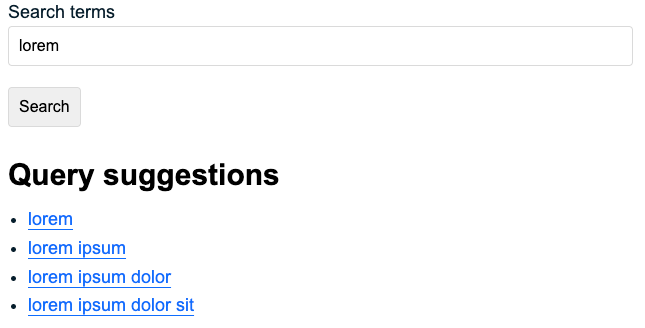
Importantly: Query suggestions will not fix spelling errors. Query suggestions are provided based on the exact query being made.
Spelling suggestions#
Also known as “spellcheck”, “did you mean?”, etc.
You can send a query and receive a list of spelling suggestions that match your content. This feature can be used in many ways, but is commonly used when the end user performs a search that returns no results. Refer to the Spelling Suggestions API documentation for details.
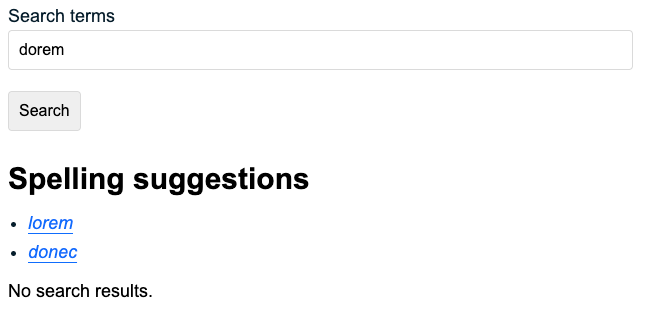
Importantly: If everything is spelled correctly in the query (based on your content), you are unlikely to receive spelling suggestions.